Before you activate
- Confirm your plan includes MultBridge and the feature is available to your company.
- Use an Official API connection in coexistence with the WhatsApp Business app. Have the phone that uses that number ready.
- Use an account allowed to edit connections. In Activation (Ativação), confirm that the connection number is known and the WhatsMeow gateway is available.
- Check whether the same number is already used by an active standalone WhatsMeow connection. That blocks linking. Review conversations using the standalone connection before deciding to disconnect it.
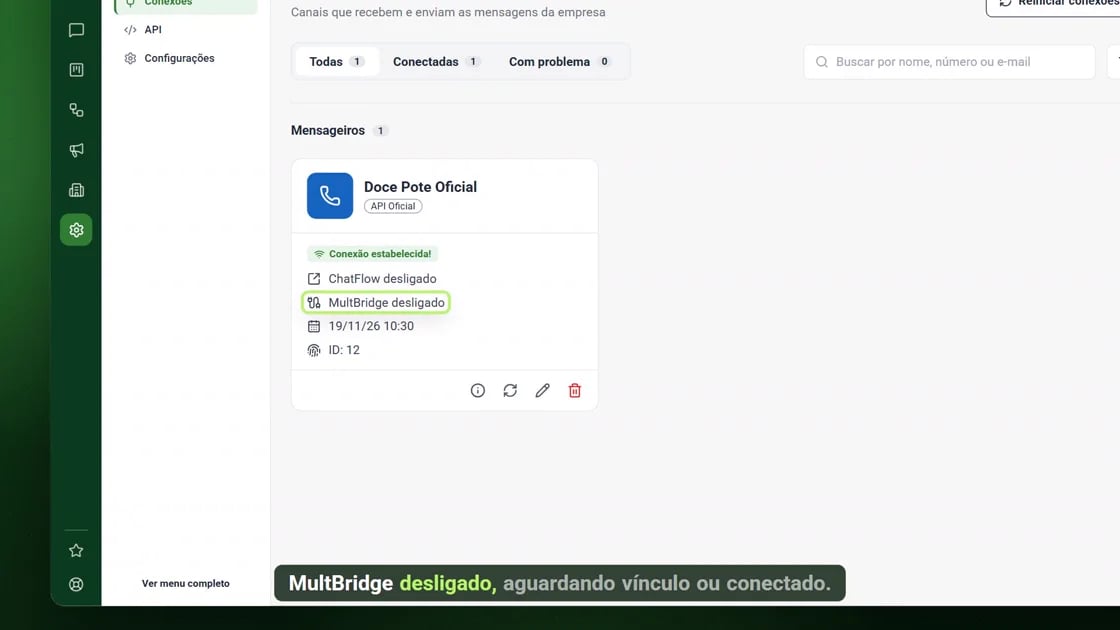
The connection list shows whether MultBridge is off, waiting to be linked, or connected.
Activate and link the number
- Open Connections (Conexões) under Administração e Sistema. Open the Official API connection and select MultBridge.
- In Activation, check the requirements and the additional provider, WhatsMeow. Turn on Ligar o MultBridge nesta conexão.
- Read the dialog, accept the terms if you agree, and select Ativar e gerar QR Code.
- On the phone that uses the same number, open WhatsApp Business → Linked devices → Link a device and scan the code shown in MultChat. Keep the dialog open while linking. The code refreshes if it expires.
- In Linked session (Sessão vinculada), confirm that the status is Connected and compare the paired number to the Official API connection number. MultChat unlinks mismatched sessions. Use Verify session (Verificar sessão) to check again.
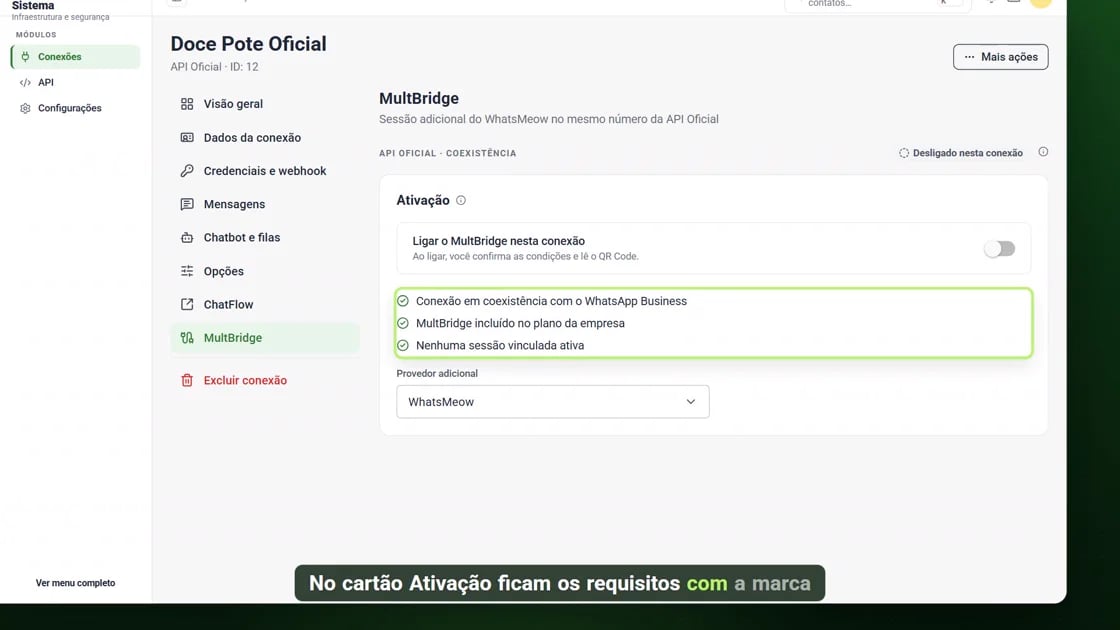
Check the requirements on the Activation card before enabling the add-on.
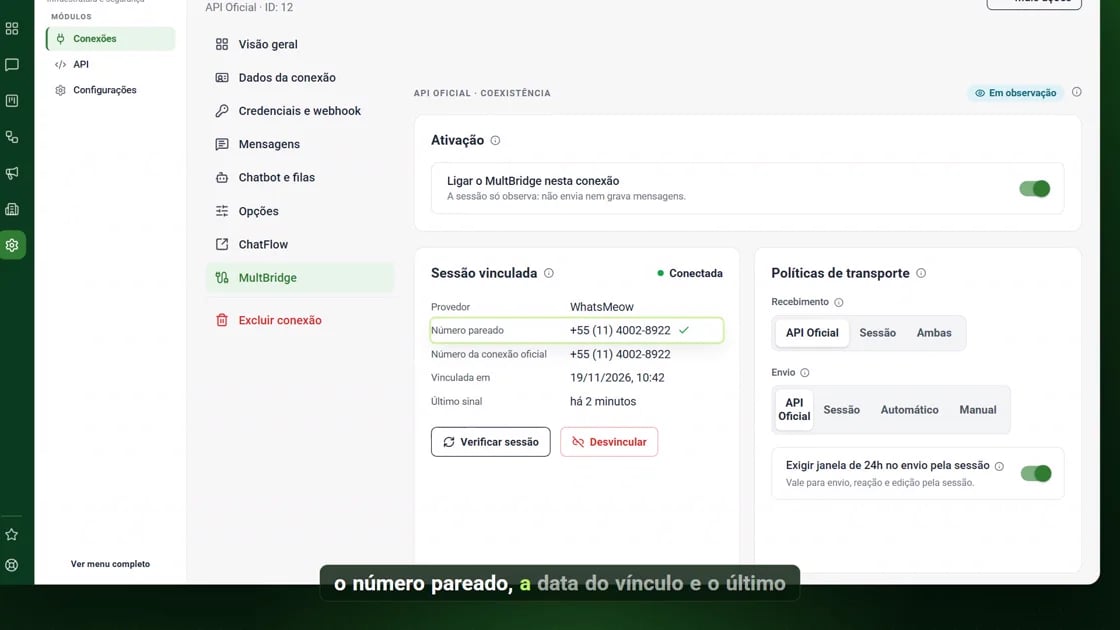
The session card shows the paired number, link date, and last signal.
Choose the transport policies
Make changes under Transport policies (Políticas de transporte). Inbound and outbound policies are independent. Check both selections after changing either one.
MultChat matches messages received over both paths to avoid duplicate entries in the same conversation. Group conversations are outside the linked session.
Chatbot replies, flows, campaigns, and templates use the Official API. Keep Require a 24-hour window for sending through the session enabled for your initial test. That setting applies the window to sends, reactions, and edits through the session. Official API sends follow Meta’s messaging rules. When ChatFlow is active for the conversation, the web conversation takes priority.
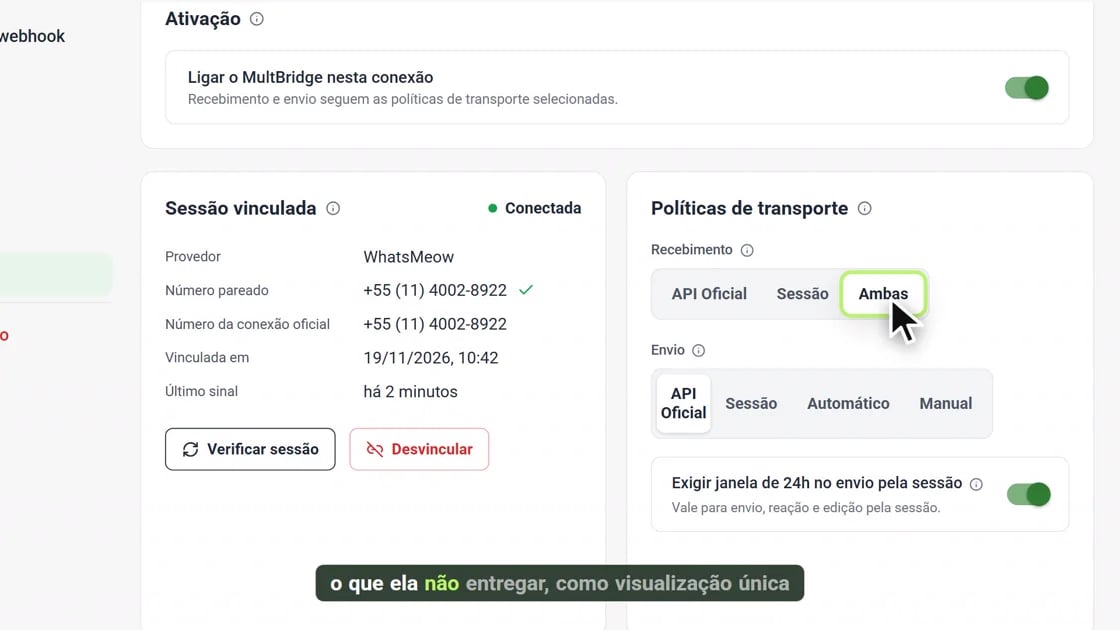
Inbound and outbound messages have separate settings on the same connection.
Test in a conversation
- In your test connection, set the outbound policy to Manual and the inbound policy to Both.
- Send a text from a second number, such as “I’d like to order a cake jar.” Open the conversation in MultChat and check that the message appears once.
- Check that Official API is initially selected near the reply box. Choose Linked session and send a test confirmation.
- Check that the confirmation arrives on the test phone and remains in the same MultChat conversation. If it fails, review Failure history.
- To return to observing, select Official API for inbound and outbound messages.
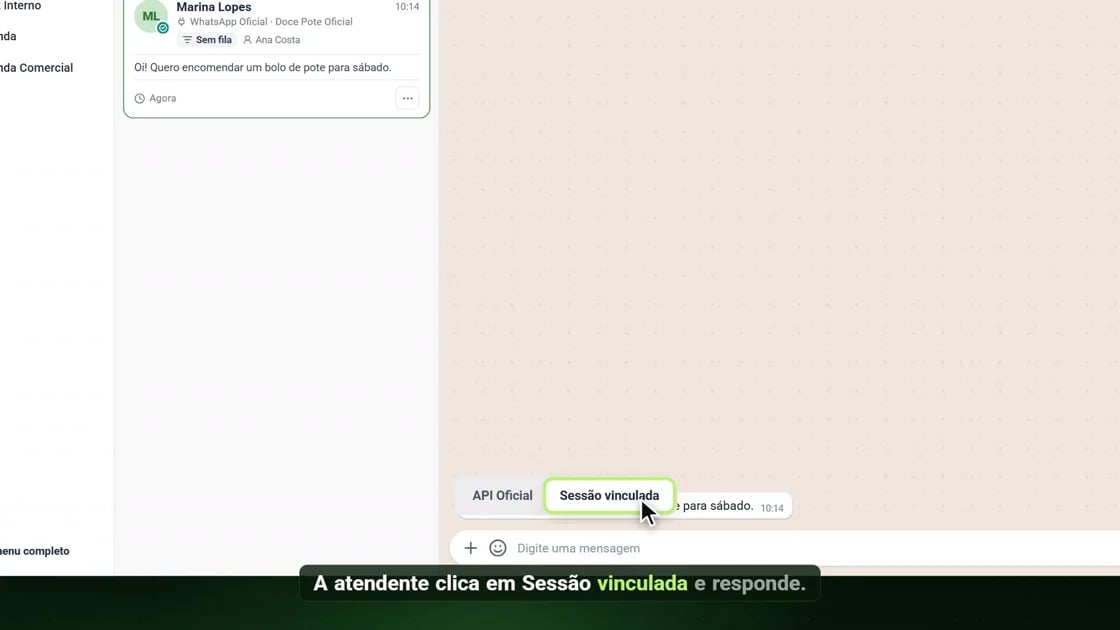
Manual mode shows the route selector next to the message field.
Monitor the session and troubleshoot
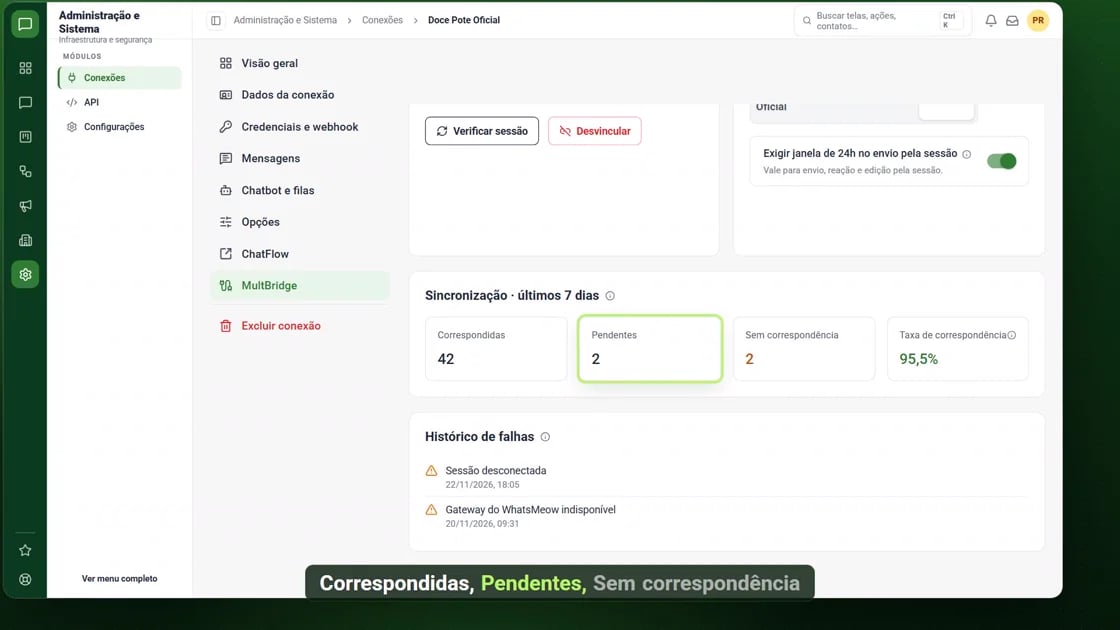
Synchronization and Failure history help you monitor the session.
- The tab is missing. Check your company’s MultBridge access and confirm you opened an Official API connection in coexistence mode.
- Waiting to link or number mismatch. Open Show QR code or Link again and scan with the WhatsApp Business app for the Official API number.
- Disconnected. Review Failure history. Check the phone’s linked devices and use Verify session or Link again. The Official API still receives messages while it remains connected.
- Linked session is unavailable in the reply box. Check the sending policy, session status, and messaging window. In Manual mode, choose the Official API if it is available and appropriate for the conversation.